

Employee Online NHS: the 30-second answer
- Find your employer’s link first. There is no single Employee Online login that gives every NHS employee access. Use your trust’s official staff page, intranet or onboarding instructions.
- For rosters, leave and bank shifts: your employer may use Employee Online (EOL), HealthRoster or Loop. Availability and menu names depend on the local setup.
- For payslips and P60s: use your employer’s payroll service, often NHS ESR, rather than assuming they are stored in EOL.
- Forgotten password? use recovery on the correct employer’s login page. For Loop, distinguish your Loop account from the account used to connect your organisation.
- A request is not an approval. Check the status of leave, bank bookings and shift changes before relying on them.
Staff Portal is an independent guide. We cannot sign you in, reset your password, approve leave or access your roster. Never send us your staff login details.
Looking for “Employee Online NHS login” often leads to a list of different hospital and trust websites. That is normal: the service is configured for individual employers. The difficult part is not finding a page with a login box, but finding the right organisation, knowing which account to use and understanding what the system can actually do.
This guide brings together official NHS trust instructions and the software provider’s guidance. It covers the common workflows without treating one trust’s password rules, leave deadlines or bank arrangements as universal NHS policy. Follow your employer’s current guidance whenever its screens or processes differ from the examples below.
What are Employee Online, HealthRoster and Loop?
Employee Online, often shortened to EOL, is an employee-facing route into electronic rostering. Official trust guides describe viewing personal rosters, requesting leave or duties, viewing timesheet information and, where enabled, booking bank shifts. You may also see the name Medic Online in local instructions.
HealthRoster is part of the employer’s rostering setup. A staff member viewing a personal rota and a roster manager building a team schedule do not necessarily use the same screen or have the same permissions. Do not assume that a colleague’s access to a management feature means it should appear in your account.
Loop is a web and mobile service from RLDatix/Allocate that can connect you to your organisation’s rostering information. The provider describes roster viewing, leave information, shift requests, bank or locum bookings and other features. Your employer determines what is available to you. Some employers direct staff to Loop instead of older Employee Online pages; this does not mean every NHS organisation has made the same change.
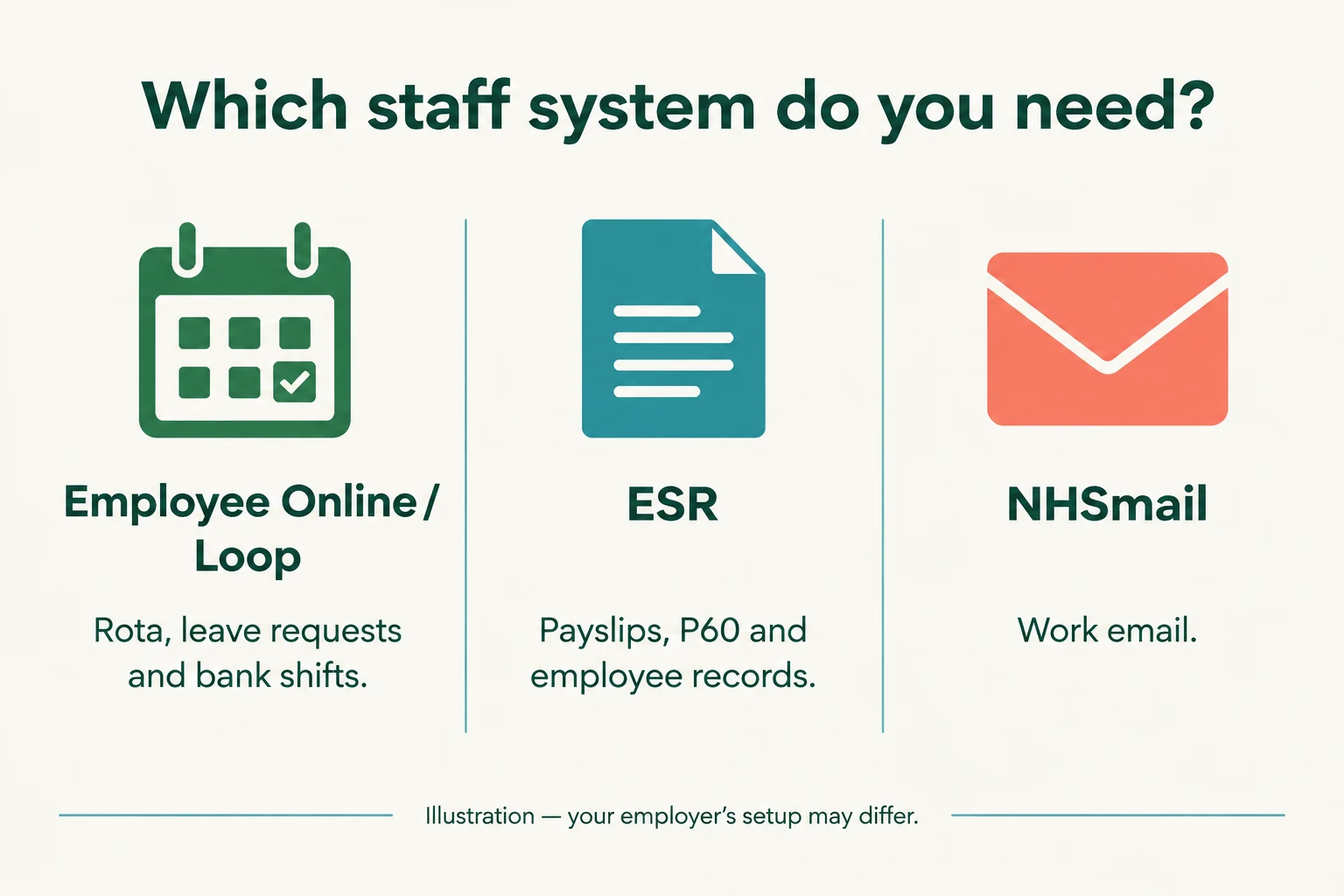
Employee Online is not the same as ESR or the NHS App
The Queen Elizabeth Hospital King’s Lynn publishes a helpful distinction: EOL covers roster-related tasks, while employee self-service through ESR covers pay documents, personal information and learning. This explains why searching your rota account for a P60 may get you nowhere, even when your login is working correctly.
- Personal rota, leave requests and bank availability: start with your employer’s rostering instructions.
- Payslip, tax document or payroll record: start with your payroll service and our ESR login and payslip guide.
- Work email: use the service specified by your employer; see NHSmail sign-in help if it uses NHSmail.
- Your healthcare as a patient: the NHS App is a different service. Our NHS App help guide explains that distinction.
How to find the correct Employee Online NHS login
- Open your employer’s official website or intranet. Look for staff links, e-rostering, Employee Online, HealthRoster, Loop or workforce systems.
- If you cannot locate it, check your induction email or ask your manager for the current official route.
- Follow the employer’s link rather than guessing a web address from another trust’s login page.
- Check the organisation shown before entering credentials. The hostname may belong to the employer’s software provider, but the link should be confirmed by your employer.
- Bookmark the verified route on a private device. Recheck it when you change employer or receive an official migration notice.
Our NHS staff portal directory can help you reach official organisation pages. It is not a replacement for your employer’s intranet or a guarantee that every organisation exposes its staff login publicly.
Why a search result can show the wrong trust
Different employers use similar product names. An old bookmark, a search advertisement or a page shared by a colleague from another organisation can send you to a valid service that does not recognise your account. Before resetting a password, confirm that the employer is correct. A password reset on the wrong system cannot fix access to your own trust.
If a previously working EOL page says the service has moved to Loop, follow the employer’s current announcement. Do not interpret a local migration notice as a national outage, and do not keep entering credentials into an obsolete route.
First-time login: new starters and staff changing employers
Your employer needs to arrange the relevant account and roster permissions. There is no universal public registration form that creates an NHS Employee Online employment record. Some official trust guides say credentials arrive by email; if nothing arrives, ask the local workforce systems or e-rostering team whether your account has been created and which email address is registered.
- Confirm the organisation and whether you should use EOL, Loop or another local tool.
- Use the credentials supplied through the employer’s approved process.
- If prompted to change an initial or temporary password, follow the rules on your current screen.
- Check that your name, team and intended employment are represented correctly.
- If the account opens but the roster is missing, report the missing team or employment link instead of repeatedly resetting the password.
Older official guides sometimes contain specific password length and character rules. Those describe that guide’s local version; they should not be treated as safe, current rules for every organisation. Use a unique password, do not reuse credentials from an unrelated site and never send a password in a support message.
If you have joined a new trust, do not assume a former employer’s EOL credentials will transfer. Similarly, bank and substantive work can involve different employment arrangements. Tell the support team exactly which employment or service you are trying to access.
Forgotten password, forgotten username or suspended account
Start on the verified page for your organisation. Many employer guides describe a Forgotten Password link followed by the registered email address. What happens next depends on the system: follow the email and on-screen instructions rather than assuming that every employer sends the same type of reset message.
- Check the trust and system before submitting recovery.
- Enter the email held for that particular account. A work email and a personal email are not interchangeable unless the correct address is registered.
- Check junk folders and, where relevant, your organisation’s email quarantine.
- Use the recovery instructions privately. Do not forward temporary passwords or reset links.
- If the email is not recognised or you cannot access the inbox, contact local workforce systems support through an approved channel.
What does “account suspended” mean?
Some trust EOL guides say a password reset can reactivate a suspended account. That is useful evidence for those systems, not a promise that suspension always means a forgotten password. If recovery fails, your employer needs to check the account status, permissions and employment record. Avoid repeated guesses and do not create another account merely to bypass the message.
Loop password versus organisation-linking credentials
A Loop account can use an email address and password you selected during registration. Connecting it to your employer can require separate organisation-specific credentials. If you can sign in to Loop but cannot connect your trust, changing the Loop password alone may not solve the problem. Identify which step is failing and give that information to your rostering team.
Allocate Loop login: signing up and connecting your organisation
The provider’s official Loop FAQ describes the following sequence. Use it alongside your employer’s instructions, especially for email choice and linking details.
- Reach Loop through your employer’s verified link, or use the official web address confirmed in its guidance.
- Create a Loop account with your email and password if you do not already have one.
- Verify your email using the confirmation message.
- Select the correct organisation.
- Enter the organisation-specific linking credentials supplied by your employer.
- Check that the intended employer and roster information appear.
NHS Lothian’s published getting-started guide explicitly distinguishes a Loop account from the EmployeeOnline or HealthRoster/Optima account used to connect the organisation. East London NHS Foundation Trust also publishes its own setup guide. This is why an account that appears to be created successfully can still have no visible shifts.
For desktop access, both the provider and official NHS guides identify the Loop web service. Confirm your employer uses Loop before registering. For a mobile download, the provider currently says to search for RLDatix Loop in your app store; older trust documents may use Allocate Loop. Use the employer’s verified download instructions to identify the correct app.
“User already exists” or organisation connection errors
The provider explains that “User Already Exists” can mean you previously registered with that email. Try signing in or recovering that existing account rather than making a duplicate. If the error occurs while connecting the organisation, check its name and the linking credentials. Tell support whether you can reach Loop itself and whether the failure starts only at the connection step.
Viewing your NHS rota: what to check before a shift
Official Employee Online guides describe a personal roster view with date navigation. The layout and colour legend can differ between employers and between desktop and phone views. Do not assume that a coloured block means the same thing as it does on a colleague’s system.
- Dates: make sure you are viewing the intended week or roster period.
- Location: check the ward, unit or service, including any duty assigned away from your usual area.
- Times: confirm start and finish times. A night duty crosses midnight, so check the dates carefully.
- Status: distinguish a published assignment from a preference, request or draft entry where your system shows them.
- Changes: if a notification and the current roster disagree, ask the roster coordinator to confirm the authoritative arrangement.
A successful sign-in does not guarantee that a future roster has been published. If the next period is blank, ask when it is due, whether you are assigned to the correct team and whether the missing period affects everyone or just your account. For an imminent shift discrepancy, contact the team through its normal operational channel rather than waiting for a general password enquiry.
Requesting annual leave, days off and preferred duties
EOL and Loop can support leave information and requests, but your employer decides the workflow. Look for its leave or request area, select the dates and review the entry before submitting. Check the units displayed: an hours balance and a days balance are not the same thing.
- Check the leave year, visible balance and relevant employment.
- Select the correct dates and absence or request type.
- Review any local roster rules or booking window.
- Submit the request through the instructed route.
- Check whether the status is pending, approved or rejected, and confirm with your manager when it is unclear.
Do not treat a submitted request as approved leave. A preference for a day off is also not necessarily an annual-leave booking. If you need to amend or cancel a request, follow the local process; deleting a calendar entry on your own device does not change the employer’s roster.
For entitlement questions, use our NHS annual leave guide alongside your contract and local policy. A displayed balance that looks wrong may need a workforce or HR check. Explain whether the problem involves contracted hours, a change in working pattern, previous service or a leave-year transition, rather than assuming the login is faulty.
Finding, booking and cancelling NHS bank shifts
Some EOL implementations include Available Bank Duties; the provider also describes bank and locum booking features in Loop. Seeing no shifts does not prove the service is down. Availability can depend on the roster period, your skills, grade, employment permissions and the employer’s process.
- Open the employer’s bank-duty or availability area.
- Check the date range and any relevant filters.
- Read the location, times, role and booking details before accepting.
- Complete the confirmation step and check the result in your roster or booking view.
- If the result is ambiguous, ask the bank team before assuming the duty is booked.
How do I cancel a bank shift on Employee Online?
There is no single cancellation rule for all NHS employers. An official Leicestershire Partnership guide directs staff to contact its workforce bureau for booked-shift cancellations. Other systems and local policies can differ. Use your employer’s current bank instructions, especially where a shift is close to starting.
Contact the designated bank office or duty coordinator, identify the booked duty and ask for confirmation that the cancellation has been processed. Do not rely on uninstalling an app, removing a diary reminder or messaging a colleague as proof that the employer has released the booking. If you are unwell, follow the sickness reporting process as well.
Bank arrangements are not identical to agency employment. Our bank, agency and substantive work comparison explains the broader distinctions without promising that every employer operates the same booking system.
Timesheets, enhancements and payslips: where a pay query belongs
Some official EOL guides describe electronic timesheets and information about enhancements or bank-duty payments. A timesheet helps show what has been recorded, but it is not the same document as a payslip and does not, by itself, establish when payroll will make a payment.
If an extra shift is missing, check the duty date and recorded status, then contact the team responsible for approving or correcting roster records. If the duty is recorded correctly but the payment seems wrong, ask payroll which pay period and processing timetable apply. Include the relevant period and duty details through its approved secure channel.
For interpreting a pay document, see NHS payslip explained. For retrieving one, see ESR payslips and P60 access. Do not reset an EOL password as a response to an unexplained tax deduction when the account and roster already work.
Using Employee Online or Loop on a phone and from home
Some employers provide an EOL mobile browser view; others recommend Loop. Official trust guidance notes that phone layouts can differ and mobile problems may relate to the device rather than a system fault. Use your organisation’s supported route instead of assuming there is a universal “NHS Employee Online app”.
- Bookmark the verified employer page if you use a browser.
- If using Loop, check you are signed into the intended account and connected to the right organisation.
- Follow employer instructions for home access; a public login page does not prove every account or feature is available remotely.
- Keep the device private and locked. Avoid storing roster screenshots on shared devices or posting colleagues’ details publicly.
- Try an approved computer when a task cannot be completed in the mobile layout, and report the device and browser to support.
If you add a browser page to your home screen, it remains a shortcut to the website. It does not create an employee account or change permissions. Likewise, a saved screenshot can become outdated when the roster changes: verify the current record before acting on an old copy.
Employee Online not working: a practical troubleshooting checklist
- The page shows another trust.
Return to your employer’s official staff links. Correct the route before attempting recovery.
- The email address is not recognised.
Check the address registered for this account. Local support may need to check the record or restore access to the recovery inbox.
- The password email does not arrive.
Check junk and quarantine, then report the account and recovery step privately. Never forward a reset link as evidence.
- Loop opens but no organisation is connected.
Complete the organisation connection using the correct employer-specific credentials, or ask rostering support to check them.
- You can log in but the roster is blank.
Check the date range and employer, then ask about publication and team assignment. This is different from failed authentication.
- Leave remains pending.
Ask the person responsible for approvals. A pending decision is not normally resolved by changing your password.
- A bank duty is missing or appears twice.
Contact the bank team before booking again. Give the date, location and booking status through an approved channel.
- The old EOL page has been replaced.
Check the employer’s migration instructions and current Loop route. Avoid guessing a replacement address.
Two worked examples: solving the right problem
A new starter can log in but sees no shifts
Illustrative example, not a real staff record. Aisha receives her EOL details and successfully changes the initial password. The roster view is blank. She checks that she is in the correct employer account and looking at the right period. She then asks the roster team whether that period has been published and whether her record is linked to her ward. Resetting an already working password would not answer either question.
A bank worker thinks a shift has been cancelled
Illustrative example. Daniel removes a shift reminder from his phone calendar. The booking still appears in his employer’s roster. He checks the local bank cancellation process and contacts the designated team, then waits for confirmation. The reminder was his own diary entry; deleting it did not tell the employer that the booking should be released.
Both examples separate a screen action from an employment action. The safest next step is to identify the account, period and status, then contact the team with authority to resolve the issue.
Who to contact, and what to include in your message
- Workforce systems or e-rostering support: account access, wrong organisation connection, missing permissions or a missing team record.
- Manager or roster coordinator: published duties, leave decisions, preferences and urgent shift discrepancies.
- Bank office: bank bookings, cancellations and duty availability under the local process.
- Payroll: payslips, deductions and payment timing once roster records have been checked.
- IT: employer device, network or email access problems.
Hello, I am trying to use [Employee Online / Loop] for [organisation]. The problem happens when I [sign in / connect my organisation / view my roster / check a booking]. The message is [exact wording], on [device and browser], at [time and date]. I have checked the organisation and date range. Please could you confirm the next step?
Use your employer’s approved support channel. Include an employee identifier only when requested securely. Do not include a password, temporary password, reset link or patient details. Crop or redact screenshots so they do not expose other staff members’ personal information.
Official sources, review date and limitations
This article was checked on 22 November 2026. These sources describe real employer or provider workflows, not a single national NHS configuration. Older PDFs may show different screens; your employer’s current instructions take priority.
- South West Yorkshire Partnership NHS Foundation Trust: Employee Online user guide (PDF) — login, recovery and roster navigation.
- Queen Elizabeth Hospital King’s Lynn: EOL versus employee self-service (PDF) — rota tasks versus ESR pay and employee records.
- Leicestershire Partnership NHS Trust: EOL user guide (PDF) — bank duties and its local cancellation process.
- Shrewsbury and Telford Hospital NHS Trust: e-rostering — employer links and roster services.
- RLDatix: official Loop frequently asked questions — account creation, organisation connection and common errors.
- NHS Lothian: Loop web getting-started guide (PDF) — Loop registration versus employer linking credentials.
- East London NHS Foundation Trust: setting up a Loop account (PDF) — an example of local setup instructions.
Staff Portal has no affiliation with these employers or the software provider. Images are original illustrations, not real employee records or official product screenshots. This guide covers staff access and practical next steps; it does not replace local roster, leave, bank or payroll policy.