
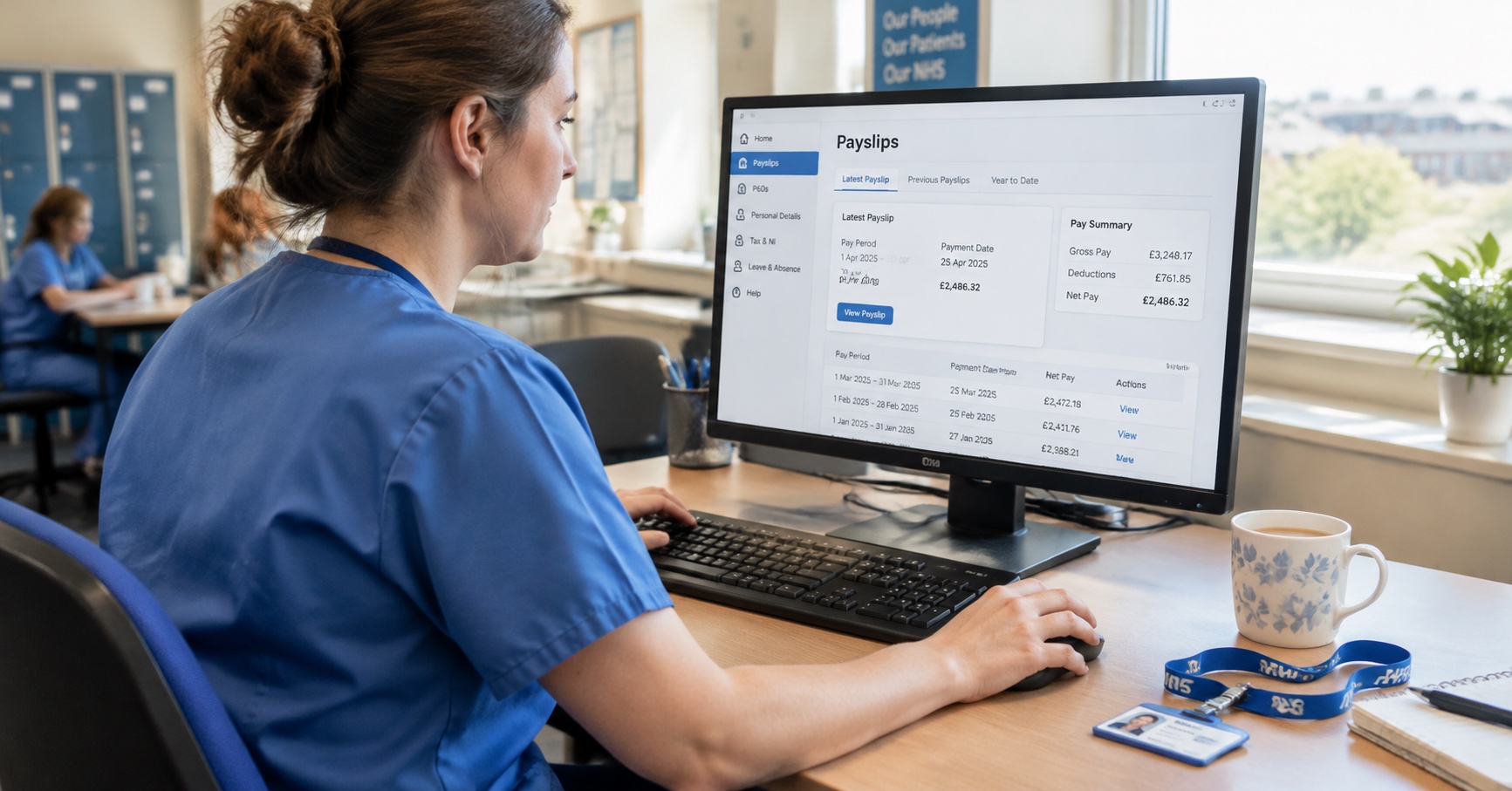
ESR login: the 30-second summary
- Sign in: open the official ESR Hub, select Login to ESR and use your ESR username and password.
- Forgotten details or locked out? choose Forgotten | Request Username/Password | Unlock Account. You need the email recorded in ESR and your date of birth; add your username if you have multiple accounts.
- Need your payslip? open My ESR → My Payslip and P60, then select the correct employer and pay period.
- No reset email or no access from home? contact your employer’s local ESR team. Your email details or internet access may need updating or approval.
- ESR unavailable? check the Hub’s service status and Payslip Availability information before trying again.
Never share your password, Smartcard PIN or reset link. Staff Portal is an independent guide, not the ESR login service.
ESR, the NHS Electronic Staff Record, is the system most NHS organisations in England and Wales use for pay, payslips, P60s, mandatory training, personal details and Total Reward Statements. You reach it at the official ESR Hub, my.esr.nhs.uk. This guide shows how to log in from home or work, get your username for the first time, reset a forgotten password, check payslip access when ESR is unavailable and fix the most common errors.
Safety first: Staff Portal is an independent guide and never asks for your ESR details. Start from the official ESR Hub or a link supplied by your employer. Check that the hostname is exactly my.esr.nhs.uk on ESR-hosted login pages, not a look-alike address. If your employer uses a different sign-in route, confirm it with local IT before entering credentials.
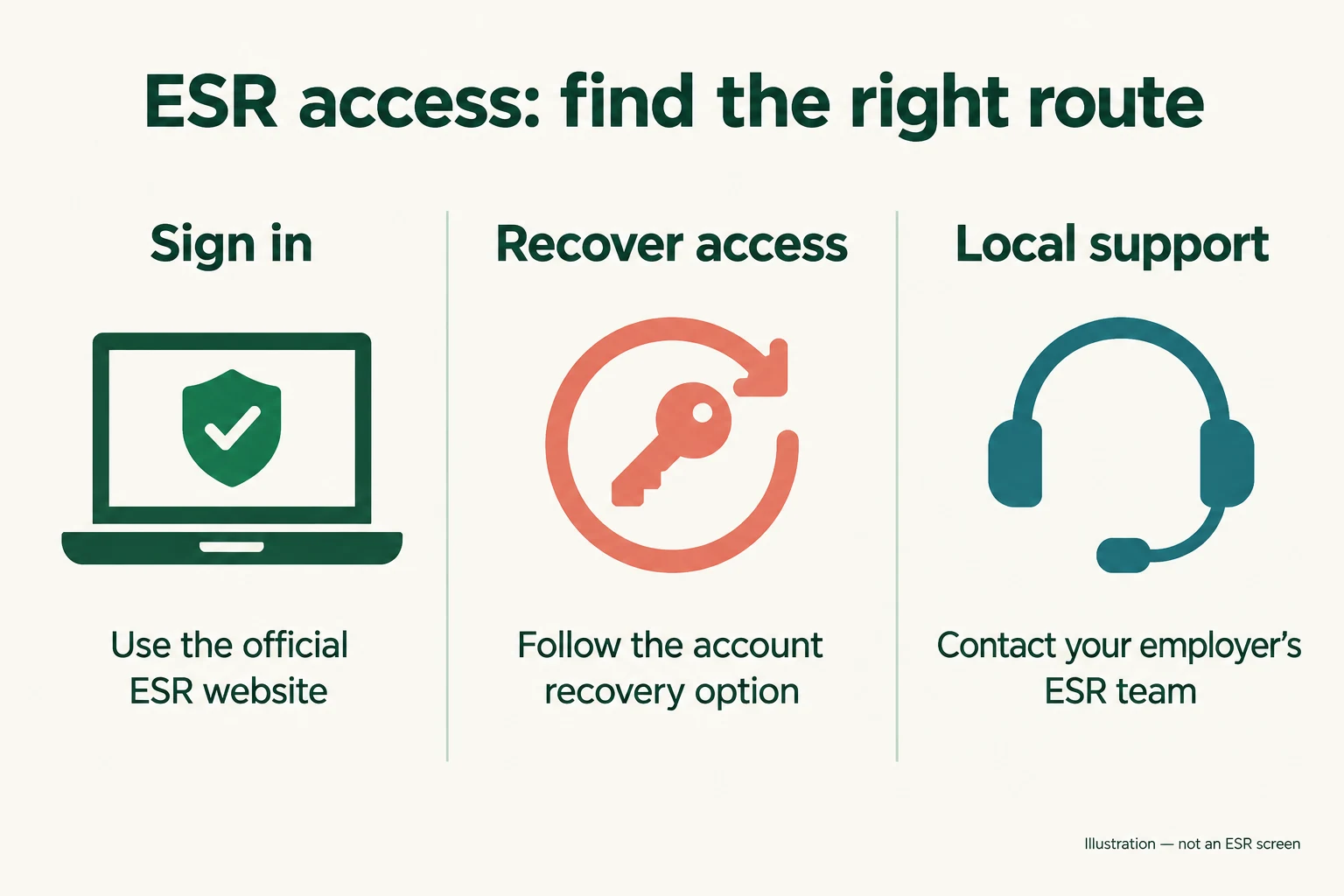
ESR login in four steps
- Go to my.esr.nhs.uk (the ESR Hub).
- Select Login to ESR.
- Enter your username and password. Usernames usually look like 999JSMITH01: a three-digit organisation code followed by your name and a number.
- Select Log in. You land on your portal with options such as My Payslip and P60, My Compliance and My Personal Information.
At work you may instead see a Smartcard option. Use your employer’s approved workstation and card reader, then follow the Smartcard sign-in prompts. Keep your Smartcard PIN private; a Smartcard login is not the same as your internet username-and-password login.
First time? How to get your ESR username and password
Your employer must create your record and arrange the appropriate access before you can sign in. There is no single timetable for every organisation. If you have just started, ask HR or your manager whether your record and self-service access are ready. There are two common routes.
Without a Smartcard (most staff)
- On the login page select Forgotten | Request Username/Password | Unlock Account.
- Enter the email address your employer holds for you (often your @nhs.net address) and your date of birth. Leave username blank unless you have more than one ESR account.
- Submit. You receive an email with your username and a link to set a password.
- Open the link, enter the username and choose a password. Follow the password rules shown on the reset screen. Do not reuse a password from another service.
With a Smartcard
- Log in to ESR with your Smartcard on a work computer.
- Choose Manage Internet Access.
- Note your username and follow the prompts to set an internet password and request access.
- If your employer requires approval, wait until the request is approved before trying from home. Your local ESR team can check the request’s status.
No email arriving? Check junk folders, and check that your employer holds your current email address. If not, your local ESR or HR team has to update it before self-service works. If you still need an NHSmail account, see our NHSmail login guide.
Forgotten your ESR password or locked out
When you log in over the internet you get five attempts before the account locks. To reset or unlock:
- Select Login to ESR, then Forgotten | Request Username/Password | Unlock Account.
- Enter your registered email and date of birth (and username if you have several accounts).
- Follow the link in the email to set a new password.
The reset only works if you can open the email account recorded in ESR. If you have lost access to it, for example after leaving a trust, contact your organisation's local ESR team or payroll; they can reset the account for you.
My ESR login from home: what you need before starting
You can reach the ESR Hub from home, but seeing the website is not proof that your employee account has internet access. Your employer must arrange the correct permissions. A Smartcard that works on a workplace computer does not, by itself, mean your username and password will work on your own laptop.
- Have your ESR username ready. It is a separate account identifier; do not assume it is your NHSmail address.
- Check access to your recovery email. If you cannot open that inbox away from work, resolve this through your employer before relying on password recovery at home.
- Use a private device and connection. Avoid saving passwords on shared computers. Follow your employer’s rules for accessing employment records outside work.
- Confirm internet-access approval. Where your employer uses Manage Internet Access, ask local support whether a request is outstanding.
If ESR works at work but not at home, tell support that distinction. Ask them to check internet permissions, the account you are using and any additional sign-in requirements, rather than repeatedly changing a working password. There is no universal home-access workaround that safely bypasses an employer’s controls.
ESR login, My ESR and MyESR: are they different accounts?
These names commonly refer to the same NHS Electronic Staff Record service or its employee portal. Start at the official ESR Hub, not a website that merely includes those words in its name. Your trust’s staff portal may provide a convenient official link, but that does not make ESR the same account as your rostering system or NHSmail.
More than one ESR account
Bank staff, people with two jobs or staff who have moved between organisations can have several usernames. The recovery process can return details for accounts associated with your registered email. Each username starts with the code for that employer, so pick the one for the job you need. Entering the username during a reset changes only that account.
ESR multi-factor authentication: extra security and lost-phone help
Multi-factor authentication (MFA) adds a second check after your username and password. The official ESR MFA guidance describes it as an optional additional security measure; follow the latest published instructions and your employer’s advice rather than assuming every account has already enabled it.
The published ESR user guide describes Microsoft Authenticator, approved internet access and initial registration through Manage Internet Access while on the workplace network. It also warns that once MFA is enabled you cannot simply revert to the previous method. Read the current setup guide before enrolling, especially if you are about to replace your phone.
If an enrolled account asks for an authentication code, use the app linked to that ESR account. An unrelated NHSmail approval request or a code from a different account is not interchangeable. Never approve an unexpected request or tell anyone your code. If you lose your phone, change devices or cannot reach the registered app, contact local ESR support through your employer’s approved channel; do not try to bypass the second check.
How to view or download your payslip
- Log in and open My ESR.
- Select My Payslip and P60.
- Choose the pay period and open or download the PDF.
Menu names can differ. Some employer guides use My Pay & Rewards → Payslip rather than My Payslip and P60. NHS Professionals’ current guidance uses My Pay & Rewards, then a year and month selector and View Payslip. Look for the payslip option in your own portal; a differently labelled menu does not automatically mean you have the wrong account.
Payslip release dates depend on your employer’s payroll timetable. If the expected period is missing, ask payroll when it will be available rather than assuming your payment has failed. To understand the deductions, use our NHS payslip explained guide and check your net pay with the take-home pay calculator. If your tax code looks wrong, see NHS tax codes explained.
A payslip check that separates access problems from pay problems
- Check the account and employer first. Someone with a substantive job and a bank role may have separate records. A payslip under one account does not prove a payment is missing from the other.
- Check the period. Choose the month you need, not just the first document on screen. Older documents may require a different year selection.
- Confirm the document opens. If the portal works but the file does not, check downloads or the browser’s PDF viewer. On a work device, ask IT before changing managed settings.
- Then check the figures. Compare basic pay, enhancements, deductions and net pay with your own records. A calculator is an estimate, not proof that payroll has made an error.
For a payroll enquiry, explain which pay period is affected and what seems different: missing shifts, an unexpected deduction or a tax-code change. Send any evidence through payroll’s approved secure process, not a public comment or an unrelated website.

When ESR is down for maintenance
Check the ESR Hub announcements and service status. Scheduled maintenance is different from a problem with your own account. Avoid repeated password attempts during an outage.
The Hub has a Payslip Availability section explaining access during unavailability. Follow the current instructions there: do not assume that every payslip, P60 or self-service feature will be available through a reduced service. If you urgently need a document and cannot retrieve it, ask your employer’s payroll team what they can provide.
Before sharing a payslip or P60
Check the employer, pay period and name on the document. Save it somewhere private, not on a shared ward computer. Payslips can contain your address, National Insurance number and pay information, so send a copy only through the recipient’s agreed secure method. Sign out when you finish, especially on a shared device.
How to find an ESR P60, and why it differs from a payslip
A payslip covers an individual pay period. A P60 summarises pay and tax for a tax year. If you are being asked for annual pay evidence, check whether the recipient needs a P60, recent payslips or both: downloading a monthly payslip does not replace a requested P60.
Look in My Payslip and P60, or your employer’s equivalent pay menu. In the NHS Professionals guide, the route is My Pay & Rewards → Online P60, then the relevant year and View Report. The wording in another organisation can differ.
Check the tax year, employer and personal details before using the document. If the year you need is absent, ask payroll about publication and access; do not create a replacement yourself from monthly totals. If you have worked for multiple employers, make clear which employment the request concerns. A P45 relates to leaving employment and should not be treated as another name for a P60.
Using ESR on your phone
ESR works in a phone or tablet browser with your username and password, which is handy for payslips, personal details and annual leave where your employer uses ESR for it. Many trusts advise completing e-learning on a computer, because some courses do not play well on phones. Save the official address as a bookmark rather than searching each time, to avoid look-alike pages.
If a payslip will not download on your phone
After selecting the document, check the browser’s downloads and your device’s files location. A PDF may open in another tab or save without displaying immediately. Try an up-to-date browser or an approved computer if the document cannot be opened, and avoid repeatedly downloading sensitive files to a shared device. Delete unnecessary copies from shared download folders and sign out when finished.
ESR e-learning and My Compliance: finding training and fixing missing records
ESR can provide access to learning and show compliance information, but your employer decides which courses, responsibilities and records are available. A successful login does not mean every course is available on every device. Use the learning option in your account or the course link your employer supplies.
- Check that you are in the account for the employer requiring the training.
- Look for the relevant learning or compliance area, then search for the assigned course or follow the enrolment instructions.
- Check any local completion requirements before starting. A course may require more than opening the material.
- If completion is missing afterwards, record the course name and completion time and ask the employer’s learning team to check it.
For a course that will not launch, check your employer’s device and browser guidance. If the module opens in a new window, a blocked window may be relevant, but do not turn off workplace security settings or install unknown software. Use an approved computer where mobile playback is unsuitable.
The ESR help page links to ESR Education and the User Manual, which require you to be signed in. Problems with access belong with local ESR support; questions about a course requirement or a completion record usually need your employer’s learning and development team.
What else you can do in ESR
| Area | What it is for |
|---|---|
| My Payslip and P60 | Monthly payslips and your year-end P60 for tax returns, mortgages and benefits claims. |
| My Compliance / Learning | Mandatory and statutory training records and e-learning, such as fire safety and information governance. |
| My Personal Information | Address, bank details, emergency contacts and equality data, if your employer allows self-service changes. |
| Total Reward Statement | A yearly summary of pay, pension and benefits, which may include pension information where available; it is not a guarantee of your future retirement income. See our NHS pension guide. |
| Appraisal and absence | Some organisations record appraisals, sickness and leave in ESR; others use separate systems. |
Which options you see depends on how your employer has set ESR up, so a colleague at another trust may see a different menu.
ESR access after leaving an NHS employer or changing trusts
Do not assume your former account will remain available indefinitely. Access and document availability after leaving depend on the organisation and the account’s status. If you are planning a move, download documents you are entitled to keep while access is available, using a private storage location and your employer’s rules.
NHS Professionals specifically describes a Leavers Dashboard available for 90 days after registration ends, with payslip, P45 and P60 items. That is NHS Professionals’ published arrangement, not a promise that every NHS trust gives 90 days of access. Ask your former payroll or ESR team what applies to you.
If your old work email no longer opens, password recovery may not reach you. Explain that you have left and need a particular document for a particular period. The former employer must verify your identity through its approved process. Staff Portal cannot retrieve your payslips, reset the account or move records between employers.
Common ESR login problems and fixes
| Problem | Fix |
|---|---|
| "Invalid username or password" | Check the username format (organisation code first) and caps lock. After five failures the account locks; use the unlock link. |
| Email address not recognised | Your employer holds a different or old email. Ask your ESR team, HR or payroll to update it. |
| Reset email never arrives | Check junk and any email quarantine, then confirm you used the address recorded in ESR. If nothing arrives, ask local ESR support to check your record and access. Never forward a reset link to someone else. |
| Page will not load at the weekend | Check the ESR Hub for maintenance or service issues, then follow its current Payslip Availability instructions if you need a payslip. |
| Smartcard not working | Use your employer’s approved Smartcard troubleshooting instructions. Local IT or your Registration Authority team can check the card, reader and access permissions; do not share your PIN. |
| ESR works at work but not at home | Ask local ESR support to check approved internet access and whether you are using the correct username. Smartcard access and internet access are different routes. |
| Authenticator code unavailable | Use the authenticator registered to that ESR account. If the phone is lost or replaced, contact local support; never share a code or bypass MFA. |
| Payslip opens for the wrong employer | Check your organisation and username, then select the intended pay period. Separate bank and substantive employment can involve separate records. |
| Course completion not showing | Check the employer account and course requirements. Give your learning team the course name and completion time through an approved channel. |
| Started recently and have no account | HR may not have finished your record yet. Ask your manager or HR when your ESR record went live. |
| Left the NHS and need an old payslip or P60 | Contact the payroll team of your former employer; you may lose online access when your contract ends. |
Who to contact when ESR still will not work
Local ESR support or HR: missing accounts, incorrect email records, username recovery, access permissions and internet-access approval. Payroll: missing payslips, incorrect pay, tax deductions and copies of documents after leaving. IT or Registration Authority: Smartcard, card-reader and workplace computer problems.
The official ESR Looking for help page also offers a Local System Administrator search. If you do not know the right contact, use your employer’s intranet, staff portal or HR helpdesk. Our NHS staff portal directory can help you find official organisation links. Staff Portal cannot unlock an ESR account or change your employment record.
A message you can send to local support
Hello, I cannot access ESR for [organisation]. I am trying to [sign in / reset my password / view a payslip]. The message shown is [exact error], and it happened at [time and date] on [work computer / home computer / phone]. I have checked the ESR service status. Please could you check my account and tell me the next step?
Use your employer’s approved support channel. Include your username or staff identifier only if the team requests it through that channel. Do not include your password, date of birth, Smartcard PIN or reset link in a general enquiry. Redact personal information from screenshots.
Worked example: first payslip missing from the screen
Illustrative scenario, not a real employee’s record. Priya has just joined a trust. She can open the ESR Hub but has not received her username. She checks with HR that her record is ready and which email address is registered, then uses the official recovery link. If home access needs approval, she asks local ESR support to check it.
Once signed in, she opens My Payslip and P60. If the first pay period is not visible, she checks payroll’s publication date. If a payslip appears but the pay or tax deduction seems wrong, she contacts payroll rather than resetting her login again. Access problems and pay problems need different teams.
Worked example: bank and substantive payslips under different accounts
Illustrative scenario. Alex has a permanent trust post and also works through NHS Professionals. Password recovery shows more than one username. Alex uses the account for the employer whose payslip is needed, rather than choosing whichever password was most recently saved on the phone. If one account shows the expected month and the other does not, Alex checks that employer’s payroll timetable separately.
If the wrong account is being reset, Alex supplies the intended username in the recovery form so the request targets that account. If the email record is wrong or access is not approved, local ESR support checks the record. If login works and the pay itself is disputed, the enquiry goes to the payroll team responsible for that employment.
Other NHS logins you may need
ESR is separate from your NHSmail, rostering systems such as HealthRoster, and job application sites. For rotas, leave requests and bank shifts, see our Employee Online NHS and Loop guide. For applying to a new post see the Trac application guide, and find your organisation's staff links in our NHS staff portal directory.
Official sources and scope
- NHS ESR Hub: login, help, service status and payslip availability
- NHS ESR: how to reset your internet password (PDF)
- NHS ESR: quick-start guide to remote access (PDF)
- ESR: local support, education and user guidance
- ESR: multi-factor authentication guidance and setup resources
- NHS Professionals: sign-in and account recovery
- NHS Professionals: payslips, P60, P45 and its leaver-access arrangements
Reviewed on 21 November 2026 using the official ESR guidance above. Older official documents may show screens that differ from your current view. This guide focuses on ESR used by NHS organisations in England and Wales; staff elsewhere in the UK should use the system specified by their employer. Local access rules and current on-screen instructions take priority.